
Home · Integrations · ScreenCloud
Microsoft Teams wallboard on ScreenCloud — live call queue on TV screens
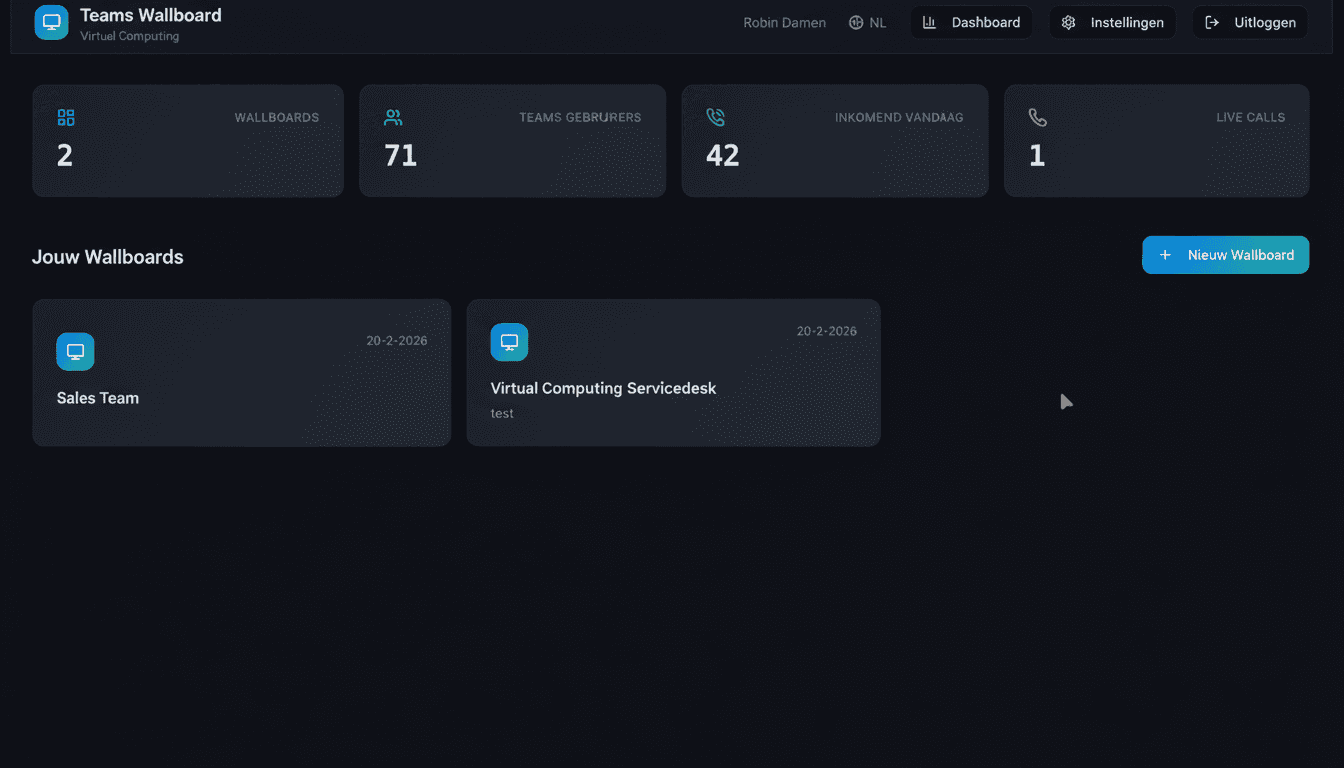
ScreenCloud has a strong "Link app" widget that puts any modern web page on a TV screen. Teams Wallboard takes full advantage of it: create a public wallboard link, paste it into ScreenCloud Studio and your call center, helpdesk or reception shows your Microsoft Teams call queue, agent status and service level — live. PIN protection and IP whitelisting make the combination ready for production environments.
Link app native
Works straight through ScreenCloud's web-page widget — no plug-in, no player software.
Enterprise-grade security
PIN code per wallboard + IP whitelisting for your ScreenCloud player IPs.
30-second refresh
The call queue refreshes automatically — ScreenCloud does not have to do a thing.
Set up in 5 steps
- 1
Build a wallboard in Teams Wallboard
Log in at teamswallboard.com, connect your Microsoft 365 tenant, pick the relevant call queues and drag widgets (calls in queue, SLA meter, agent presence, trend chart) onto a board.
- 2
Create a public link with a PIN
Settings → Public sharing → Make public. Optional: add a 6-digit PIN (entered once on the ScreenCloud player) and add the outbound IP of your player to the IP whitelist.
- 3
Add a "Link app" in ScreenCloud Studio
Log in to ScreenCloud Studio → Apps → Link → New App. Paste the URL
https://www.teamswallboard.com/public/[token]→ name it "Teams Wallboard" → Save. - 4
Schedule or Playlist
For one wallboard 24/7: use a Schedule with the Link app running full-time. For multiple wallboards: create a Playlist with 30-60 seconds per Link app — ScreenCloud rotates automatically.
- 5
Assign it to your ScreenCloud player
Assign the Schedule or Playlist to a Screen. Within 30 seconds your live Teams call queue is on the TV. The wallboard refreshes itself every 30 seconds.
What shows up on your ScreenCloud screen?
- Live calls in queue per Teams call queue
- Average and current wait time
- Service level percentage (today, week, month)
- Abandonment rate with a trend
- Agent presence per team member (available/busy/in a call/away)
- Calls handled today
- Average call duration per agent
- Live hourly trend charts
ScreenCloud scenarios
Head office reception + call center combo
Two ScreenCloud screens: reception shows a PIN-protected "public" wallboard (agent count and opening hours only), while the call center shows the full operations wallboard with the SLA meter and agent names. ScreenCloud's group management makes it easy to maintain both screens at once.
Multi-site helpdesk
Three offices, each with a ScreenCloud screen at the helpdesk counter. Every location shows a wallboard filtered to its own call queue. ScreenCloud's tag-based scheduling means you build one Schedule and the right wallboard is automatically pushed to the right location.
Retail chain with a central support line
Head office runs one central support call queue for 80 stores. One ScreenCloud screen at the support team shows calls in queue, SLA and agent status. A second screen at management shows high-level KPIs only (total calls, average daily SLA). One Teams tenant, two wallboards, two screens.
What does it cost?
Teams Wallboard: €10/month per organization, no matter how many ScreenCloud displays you run. 14-day free trial, cancel monthly.
ScreenCloud: from $22/screen/month (Core plan) or $32/screen/month (Pro). Pro adds more apps, user permissions and analytics — not required for Teams Wallboard.
All-in for a single screen: roughly €30 per month. Compare that with a dedicated contact center license, which quickly runs past €100 per agent per month.
Frequently asked questions
Does Teams Wallboard run directly on ScreenCloud players?
Yes. ScreenCloud players run Chromium and support the 'Link app' (web-page widget). Create a public wallboard link in Teams Wallboard, add it as a Link app in ScreenCloud Studio and your TV screen shows your live Teams call queue. No separate download or installation on the player.
Which ScreenCloud plan do I need?
Every ScreenCloud license including the free trial supports web-page apps. For 24/7 production use we recommend Pro or higher because of automatic updates, remote restart and more extensive player management.
How do I keep the wallboard link secure on a ScreenCloud screen?
Enable PIN protection (a 6-digit code) and/or IP whitelisting in Teams Wallboard. With IP whitelisting you enter the outbound IP of your ScreenCloud player or office network — only those IPs get to see the wallboard.
Can ScreenCloud rotate multiple wallboards?
Yes. In ScreenCloud Studio, create a Playlist with multiple Link apps (one per wallboard). Set a duration (45 seconds per wallboard, for example) and ScreenCloud automatically rotates between your call center, helpdesk and lobby wallboards.
Does it also work on Apple TV or ScreenCloud OS?
Yes. ScreenCloud OS and the ScreenCloud players for Chrome OS and Apple TV use the same Chromium-based engine. Our PWA behaves identically across all ScreenCloud platforms.
Your Teams call queue live on your ScreenCloud display
14-day free trial. Connect your Microsoft 365 tenant in 5 minutes and see your first live wallboard within 30 seconds.
No credit card required · €10/month after trial · cancel monthly
Rolling this out across multiple locations? Book a demo →